
How to Get Meeting Insights from Microsoft Teams Meetings
Overview
Microsoft Teams is the hub for teamwork in many organizations, hosting everything from quick syncs to important client calls. Efficlose integrates seamlessly with Teams to capture meeting content and convert it into actionable insights—automatically generating summaries, transcripts, and action items so you can focus on the conversation.
Step-by-Step Instructions
Step 1: Connect Microsoft Teams
Set up the integration between Efficlose and your Microsoft Teams account:
- Navigate to Efficlose → Integrations
- Click Connect Microsoft Teams
- Sign in with your Microsoft 365 account
- Review and approve the permissions requested
- Click Accept to complete authorization
Enterprise Accounts
If your organization uses Microsoft 365 Enterprise, an admin may need to approve the Efficlose app in the Azure AD portal before individual users can connect.
Step 2: How Efficlose Joins Your Meetings
Automatic Joining
Once connected, Efficlose automatically joins all Zoom meetings where you are the owner:
- The bot detects your scheduled meetings
- Joins at the scheduled start time
- No manual action required
Manual Launch (For Any Meeting)
You can also manually launch the bot for any meeting from the Efficlose UI:
- Go to Efficlose → Meetings and find the meeting in your list
- Click the Join Meeting button (camera icon) next to the meeting
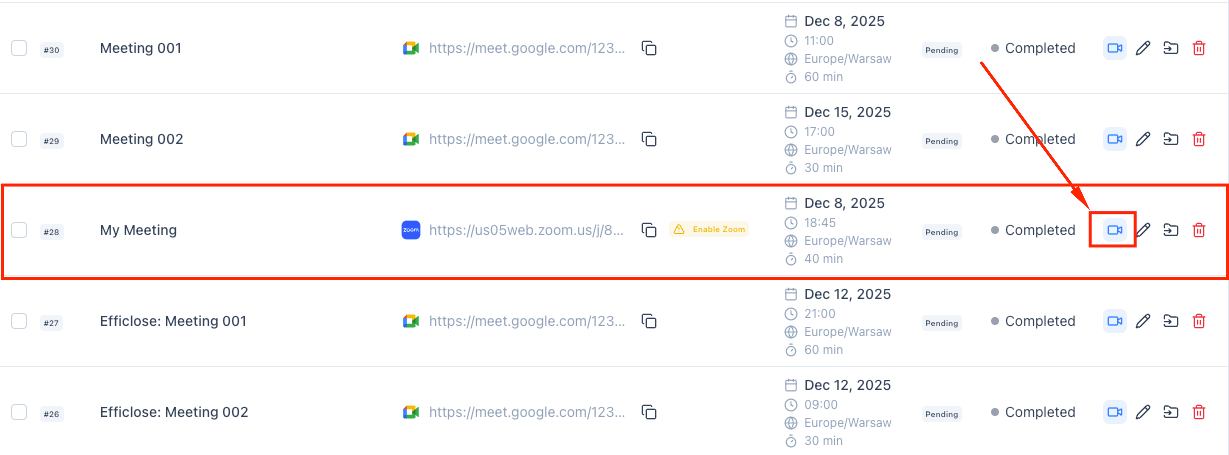
- In the confirmation dialog, review the meeting details and click Join Meeting
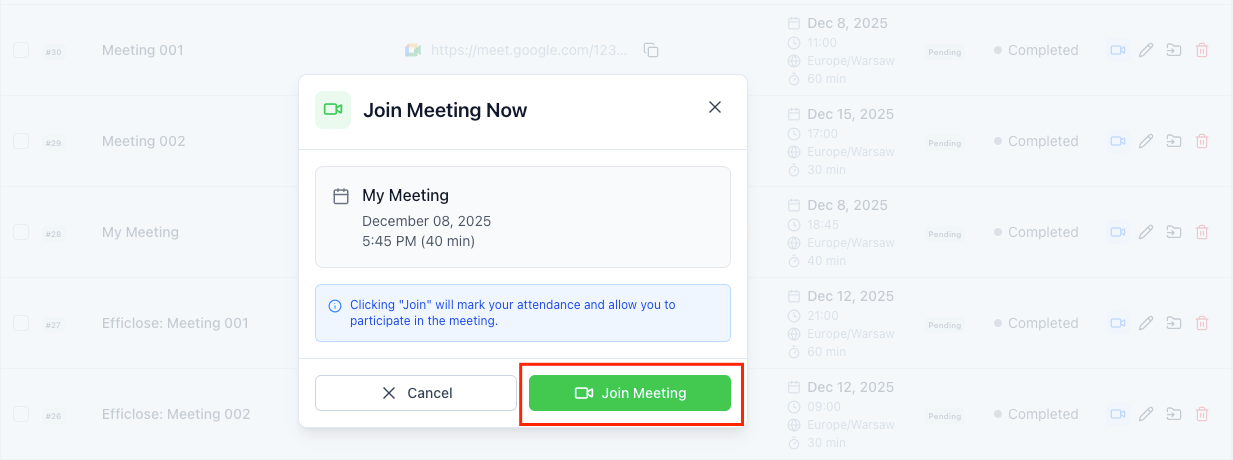
- The bot will join using your Zoom account permissions
Step 3: Post-Meeting Review
After your Teams meeting ends, access your insights in Efficlose:
- Navigate to Recordings in Efficlose
- Select the Teams session you want to review
- Explore the generated insights:
Action Items
- Automatically extracted tasks mentioned during the meeting
- Suggested assignees based on speaker identification
- Due date recommendations based on context
Transcript
- Full searchable transcript of the meeting
- Speaker identification and timestamps
- Click any section to jump to that moment
Best Practices
Before the Meeting
Label Meetings for Clearer Insights
Use consistent naming conventions for your Teams meetings:
- Include project or client name
- Add meeting type (standup, review, planning)
- Example: "Acme Corp - Weekly Status Update"
Send Agenda in Advance
When you include an agenda in the meeting invite, Efficlose can:
- Structure the summary around agenda items
- Identify which topics were covered
- Flag any agenda items not addressed
During the Meeting
Speak Clearly and Avoid Overlapping
For optimal transcription accuracy:
- Use push-to-talk or mute when not speaking
- Avoid multiple people talking at once
- State your name before speaking in large meetings
Verbalize Decisions and Action Items
Help Efficlose capture important points:
- "Decision: We're moving forward with option B"
- "Action item for Mike: Schedule the vendor call by Thursday"
- "Key point: Budget is approved at $50,000"
After the Meeting
- Review insights within 24 hours while context is fresh
- Verify and assign action items to appropriate team members
- Share the summary with anyone who couldn't attend
- Add manual notes for any context the AI might have missed
Troubleshooting
Efficlose Didn't Join My Teams Meeting
Verify Permissions
- Go to Efficlose → Integrations → Teams
- Check that the status shows "Connected"
- If disconnected, click Reconnect and re-authorize
- Ensure all required permissions were granted
Check Calendar Sync
- Verify your calendar is properly synced
- Confirm the meeting appears in your connected calendar
- Check that the meeting time is correct (timezone issues)
Meeting Settings
Ensure the Teams meeting allows external participants:
- Open the meeting in Teams
- Check "Who can bypass the lobby" settings
- Ensure guests can join the meeting
Missing or Incomplete Transcript
- Check audio quality—poor connections affect transcription
- Verify the meeting language matches Efficlose settings
- Ensure all participants are using microphones properly
- Large meetings with many speakers may take longer to process
Action Items Not Detected
- Phrase action items explicitly: "John will complete the report"
- Avoid vague language like "someone should look into that"
- Manually add missed action items in the meeting review
Related Guides
Expand your meeting intelligence workflow:
- Zoom Integration – Capture Zoom meeting insights
- Google Meet Integration – Set up Google Meet recording
- Creating Jira Action Items – Push action items to Jira
- Salesforce Action Items – Sync with your CRM
Key Takeaways
- Connect Teams through the Integrations page with your Microsoft 365 account
- Enable automatic capture or manually invite Efficlose to specific meetings
- Review action items, highlights, and full transcripts after each meeting
- Use clear meeting labels and speak clearly for best results
- Verify permissions and calendar sync if issues arise
Ready to transform your meetings?
Start capturing, transcribing, and analyzing every conversation with AI. Free 14-day trial, no credit card required.
How to Get Meeting Insights from Zoom Meetings
Learn how to automatically capture, analyze, and view meeting insights from your Zoom calls using Efficlose.
How to Get Meeting Insights from Google Meet Meetings
Capture Google Meet sessions and generate summaries, action items, and searchable transcripts automatically with Efficlose.